
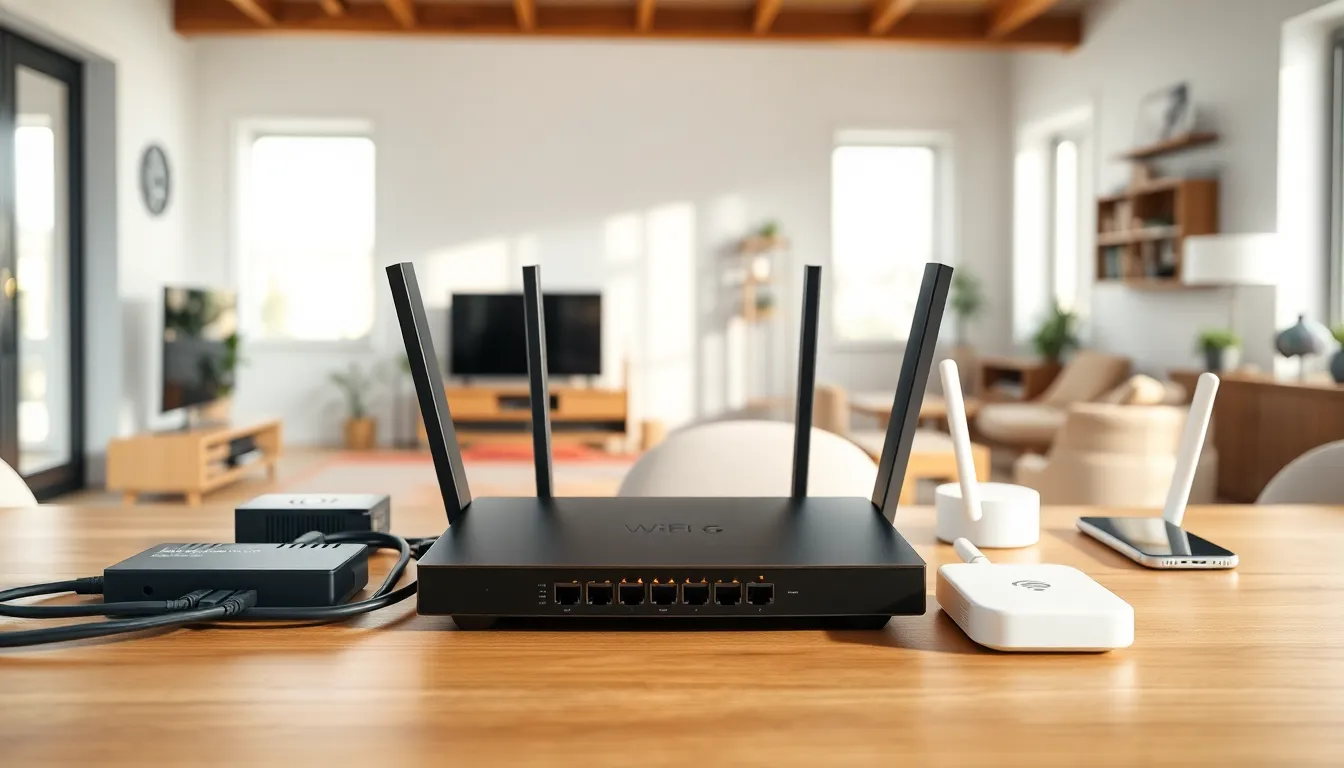
The best home networking setup transforms how people live, work, and play. A reliable home network supports streaming, gaming, video calls, and smart devices without frustrating lag or dead zones. Yet many households still struggle with slow speeds, dropped connections, and confusing equipment choices.
This guide breaks down everything needed to build a fast, stable home network. Readers will learn about essential components, router selection, wired versus wireless options, and practical optimization tips. Whether someone is upgrading an existing setup or starting from scratch, these insights will help them make smart decisions and get the most from their internet connection.
Table of Contents
ToggleKey Takeaways
- The best home networking setup combines quality components—modem, router, switches, and access points—to eliminate dead zones and support all your devices.
- Choose at least a Wi-Fi 6 router and consider mesh systems for homes over 1,500 square feet to ensure consistent coverage.
- Use wired Ethernet connections for stationary devices like gaming consoles and smart TVs to maximize speed and reduce latency.
- Position your router centrally, elevated, and away from interference sources like microwaves and metal objects for optimal performance.
- Secure your network with WPA3 encryption, strong passwords, and a separate guest network to prevent unauthorized access.
- Regularly update router firmware and reboot equipment monthly to maintain speed, stability, and security.
Understanding Home Network Components
A home network consists of several key components that work together to deliver internet access throughout a house. Understanding each piece helps homeowners make informed purchasing decisions and troubleshoot problems when they arise.
Modem
The modem connects a home to the internet service provider (ISP). It translates the signal from the ISP into data that devices can use. Most ISPs provide a modem, though many users prefer to buy their own for better performance and to avoid rental fees.
Router
The router distributes the internet connection to multiple devices. It creates the local network and manages traffic between devices. Modern routers support both wired and wireless connections. They also include security features like firewalls and encryption.
Network Switch
A network switch expands the number of wired connections available. This device is useful for homes with multiple desktop computers, gaming consoles, or streaming devices that benefit from Ethernet connections.
Access Points
Access points extend wireless coverage to areas the main router cannot reach. They connect to the router via Ethernet cable and broadcast the Wi-Fi signal in dead zones. Mesh systems use multiple access points to create seamless whole-home coverage.
Ethernet Cables
Ethernet cables provide the fastest and most stable connections. Cat6 cables support speeds up to 10 Gbps and work well for most home networking needs. Cat6a cables offer better shielding for longer runs.
Knowing these components helps users build the best home networking solution for their specific situation.
Choosing the Right Router for Your Needs
The router serves as the heart of any home network. Selecting the right one depends on home size, device count, and usage patterns.
Wi-Fi Standards
Wi-Fi 6 (802.11ax) routers offer the latest technology with faster speeds and better performance in crowded networks. They handle multiple devices more efficiently than older Wi-Fi 5 (802.11ac) models. Wi-Fi 6E adds a third 6 GHz band for even less interference. For best home networking results, choose at least a Wi-Fi 6 router.
Speed Ratings
Manufacturers advertise combined theoretical speeds like AX3000 or AX5400. These numbers add up maximum speeds across all bands. Real-world performance varies, but higher ratings generally indicate better hardware. Match the router speed to the ISP plan, there’s no benefit to an AX6000 router on a 100 Mbps connection.
Coverage Area
Standard routers work well for apartments and small homes under 1,500 square feet. Larger homes benefit from mesh systems that use multiple units to eliminate dead zones. Mesh networks provide consistent coverage across 3,000+ square feet.
Number of Devices
Households with many smart devices, phones, tablets, and computers need routers with strong multi-device support. Look for MU-MIMO technology and OFDMA, which allow routers to communicate with multiple devices simultaneously.
Additional Features
Quality routers include parental controls, guest networks, and easy-to-use mobile apps. Some offer built-in VPN support or malware protection. USB ports allow file sharing across the network.
Investing in a quality router pays dividends in reliability and speed for years.
Wired vs. Wireless Networking Options
Both wired and wireless connections have their place in the best home networking setups. Understanding the trade-offs helps users decide which to use where.
Advantages of Wired Connections
Ethernet delivers faster, more consistent speeds than Wi-Fi. A wired connection experiences no interference from walls, appliances, or neighboring networks. Latency stays low, critical for online gaming and video conferencing. Security improves since there’s no wireless signal to intercept.
Wired connections suit stationary devices like desktop computers, gaming consoles, smart TVs, and streaming boxes. Running Ethernet cables requires more effort upfront but provides lasting benefits.
Advantages of Wireless Connections
Wi-Fi offers convenience and flexibility. Users can move freely with laptops, phones, and tablets. Installation requires no drilling or cable management. Wireless networks adapt easily as households add new devices.
Most smart home devices, thermostats, cameras, doorbells, and speakers, connect exclusively via Wi-Fi. A strong wireless network is essential for modern connected homes.
Hybrid Approach
The best home networking strategy often combines both options. Connect bandwidth-heavy stationary devices via Ethernet. Use Wi-Fi for mobile devices and smart home gadgets. This approach maximizes performance while maintaining convenience.
Powerline and MoCA Adapters
When running Ethernet cables isn’t practical, powerline adapters send network signals through electrical wiring. MoCA adapters use coaxial cable for the same purpose. These alternatives provide wired-like stability without new cable runs, though performance varies by home wiring quality.
Tips for Optimizing Your Home Network Performance
Even the best home networking equipment needs proper setup and maintenance to perform well. These practical tips help users get maximum speed and reliability.
Position the Router Strategically
Place the router in a central location, elevated off the floor. Avoid closets, cabinets, and corners. Keep it away from metal objects, microwaves, and cordless phones that cause interference. The ideal spot provides clear line-of-sight to high-traffic areas.
Update Firmware Regularly
Router manufacturers release firmware updates that fix bugs, patch security vulnerabilities, and improve performance. Enable automatic updates or check manually every few months. Outdated firmware can cause slowdowns and security risks.
Use the Right Wi-Fi Band
The 5 GHz band offers faster speeds but shorter range. The 2.4 GHz band travels farther but runs slower and faces more interference. Connect nearby devices to 5 GHz and distant devices to 2.4 GHz. Many routers handle this automatically with band steering.
Secure the Network
Use WPA3 encryption if available, or WPA2 at minimum. Create a strong, unique password. Set up a separate guest network for visitors. Disable WPS, which has known security flaws. A secure network prevents unauthorized access that can slow performance.
Reduce Interference
Change the Wi-Fi channel if neighbors’ networks cause congestion. Use a Wi-Fi analyzer app to find less crowded channels. The 5 GHz and 6 GHz bands typically have less interference than 2.4 GHz in dense areas.
Restart Equipment Periodically
Rebooting the modem and router clears memory and refreshes connections. A monthly restart can prevent slowdowns. Some routers offer scheduled automatic reboots.
Monitor Connected Devices
Remove old devices from the network. Check for bandwidth-hogging applications. Quality of Service (QoS) settings can prioritize important traffic like video calls over background downloads.


