
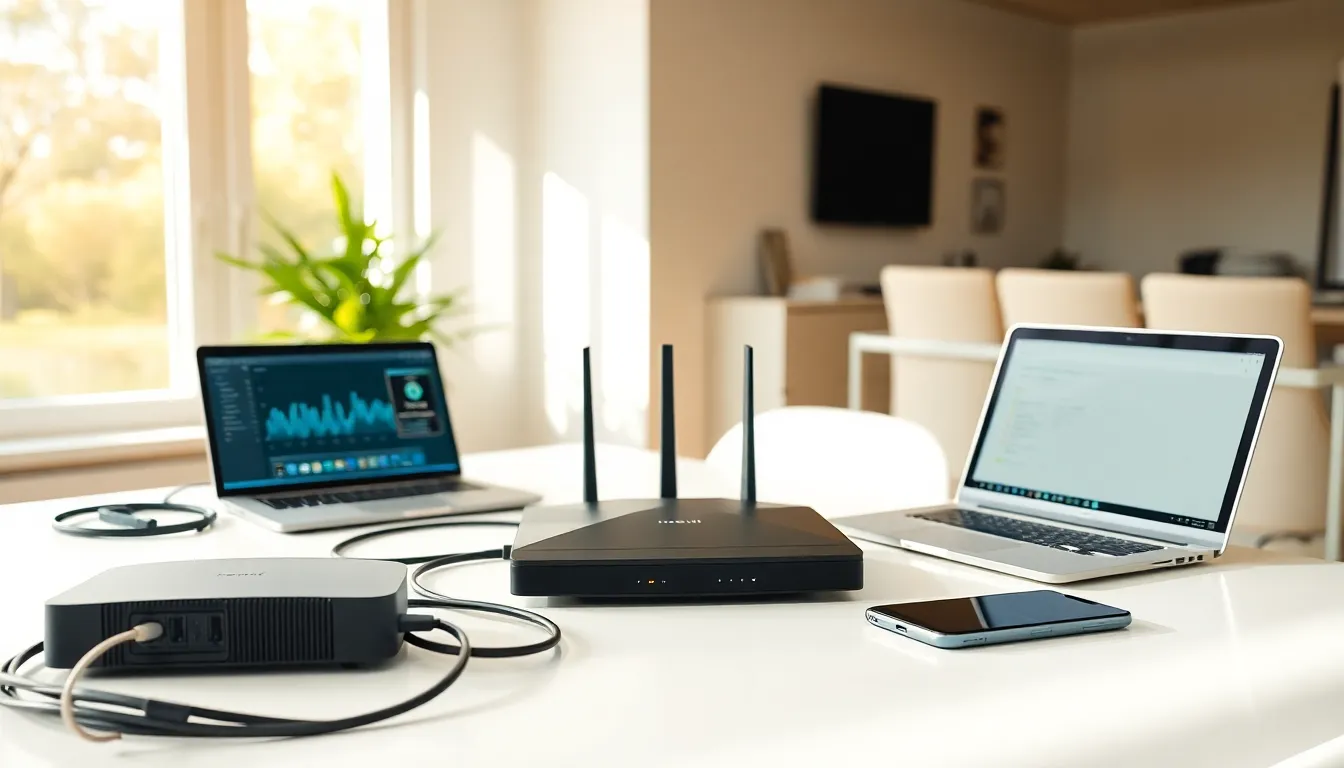
A solid home networking guide can save hours of frustration and hundreds of dollars in tech support calls. Whether someone streams movies, works remotely, or just wants their smart devices to stop disconnecting, a well-built home network makes all the difference. The good news? Setting up a reliable network doesn’t require an IT degree. This home networking guide breaks down everything from basic equipment to security essentials, helping anyone create a fast, stable connection throughout their house.
Table of Contents
ToggleKey Takeaways
- A solid home networking guide helps you set up a fast, stable connection without needing technical expertise or expensive support.
- Position your router centrally and use a combination of wired (ethernet) and wireless connections for optimal speed and coverage.
- Invest in essential equipment like a DOCSIS 3.1 modem, Wi-Fi 6 router, and consider mesh systems for homes over 2,000 square feet.
- Optimize performance by connecting to the 5GHz band for nearby devices, updating firmware regularly, and using QoS settings to prioritize important traffic.
- Secure your home network by using WPA3 encryption, creating strong passwords, setting up a guest network, and regularly monitoring connected devices.
Understanding the Basics of Home Networks
A home network connects all devices in a household to each other and to the internet. This includes computers, phones, smart TVs, gaming consoles, and IoT devices like thermostats or security cameras.
Every home network starts with an internet service provider (ISP). The ISP delivers internet access through a modem, which translates the signal into something devices can use. A router then distributes that connection wirelessly or through ethernet cables.
Two main types of connections exist in any home networking guide worth reading:
- Wired connections use ethernet cables to link devices directly to the router. They offer faster speeds and more stable connections.
- Wireless connections use Wi-Fi signals to connect devices without cables. They provide convenience but can suffer from interference.
Most modern homes use a combination of both. Desktop computers and gaming consoles often benefit from wired connections, while phones and laptops rely on Wi-Fi.
Understanding bandwidth matters too. Bandwidth represents how much data can transfer at once, think of it like a highway. More lanes mean more cars can travel simultaneously. A family streaming Netflix, gaming online, and video calling all at once needs more bandwidth than a single user checking email.
Essential Equipment You Need
Building a reliable home network requires specific equipment. Here’s what belongs on any home networking guide shopping list:
Modem
The modem connects the home to the ISP. Many providers rent modems monthly, but buying one often saves money long-term. Look for DOCSIS 3.1 compatibility for cable internet or check ISP requirements for fiber connections.
Router
The router creates the actual network and manages traffic between devices. Key features to consider include:
- Wi-Fi 6 or Wi-Fi 6E support for faster wireless speeds
- Dual-band or tri-band capability to reduce congestion
- Multiple ethernet ports for wired connections
- Quality of Service (QoS) settings to prioritize certain traffic
Some ISPs provide modem-router combo units. These work fine for small spaces, but separate devices usually perform better in larger homes.
Mesh Systems or Range Extenders
Larger homes often need help spreading the signal. Mesh systems use multiple units that work together as one network. Range extenders boost existing signals but can reduce speeds. For most homes over 2,000 square feet, mesh systems deliver better results.
Ethernet Cables
Cat6 or Cat6a cables handle gigabit speeds and work well for most home networking guide setups. They’re affordable and significantly improve connection stability for stationary devices.
Setting Up Your Home Network Step by Step
Follow these steps to build a home network from scratch:
Step 1: Position the router centrally. Wi-Fi signals radiate outward in all directions. Placing the router in a central location ensures better coverage throughout the house. Avoid closets, basements, or corners.
Step 2: Connect the modem. Plug the coaxial or fiber cable from the wall into the modem. Connect the modem to a power source and wait for it to establish a connection with the ISP.
Step 3: Connect the router to the modem. Use an ethernet cable to link the modem’s output port to the router’s WAN or internet port. Power on the router.
Step 4: Access the router’s admin panel. Open a web browser and enter the router’s IP address (often 192.168.1.1 or 192.168.0.1). The default login credentials appear on the router itself or in its manual.
Step 5: Configure basic settings. Change the default admin password immediately. Create a unique network name (SSID) and set a strong Wi-Fi password using WPA3 encryption if available.
Step 6: Connect devices. Search for the new network on each device and enter the password. For wired connections, plug ethernet cables directly into the router’s LAN ports.
Step 7: Test the connection. Run a speed test from multiple locations to verify coverage and speeds match expectations.
Tips for Optimizing Speed and Coverage
A basic setup works, but optimization takes any home networking guide to the next level.
Choose the right frequency band. Most routers broadcast on both 2.4GHz and 5GHz bands. The 2.4GHz band travels farther but offers slower speeds. The 5GHz band delivers faster speeds over shorter distances. Connect nearby devices to 5GHz and distant devices to 2.4GHz.
Reduce interference. Microwaves, cordless phones, baby monitors, and neighboring Wi-Fi networks can all interfere with signals. Keep the router away from these sources. Changing the Wi-Fi channel in router settings can also help avoid crowded frequencies.
Update firmware regularly. Router manufacturers release updates that improve performance and fix bugs. Check for updates monthly or enable automatic updates.
Use wired connections when possible. Ethernet always beats Wi-Fi for speed and reliability. Run cables to devices that don’t move, like desktop computers, smart TVs, and gaming consoles.
Limit bandwidth hogs. Enable QoS settings to prioritize important traffic like video calls over background downloads. Some routers allow scheduling to limit certain activities during peak hours.
Consider powerline adapters. These devices use home electrical wiring to extend network connections. They work well in homes where running ethernet cables proves difficult.
Keeping Your Network Secure
Security deserves attention in any complete home networking guide. An unsecured network invites hackers and freeloaders.
Use strong passwords. Both the Wi-Fi password and router admin password should be long, unique, and include numbers, letters, and symbols. Avoid obvious choices like addresses or pet names.
Enable WPA3 encryption. This latest security protocol offers the strongest protection. If devices don’t support WPA3, use WPA2 as a minimum. Never use WEP, it’s outdated and easily cracked.
Create a guest network. Visitors don’t need access to the main network. A separate guest network keeps personal devices isolated from potentially compromised phones or laptops.
Disable WPS. Wi-Fi Protected Setup makes connecting devices easier but creates security vulnerabilities. Turn it off in router settings.
Hide the SSID (optional). Hiding the network name prevents it from appearing in public Wi-Fi lists. This adds a minor layer of security, though determined attackers can still find hidden networks.
Monitor connected devices. Check the router’s admin panel periodically to see what’s connected. Unknown devices might indicate unauthorized access.
Set up a firewall. Most routers include built-in firewalls. Ensure this feature is enabled to block malicious traffic.


