
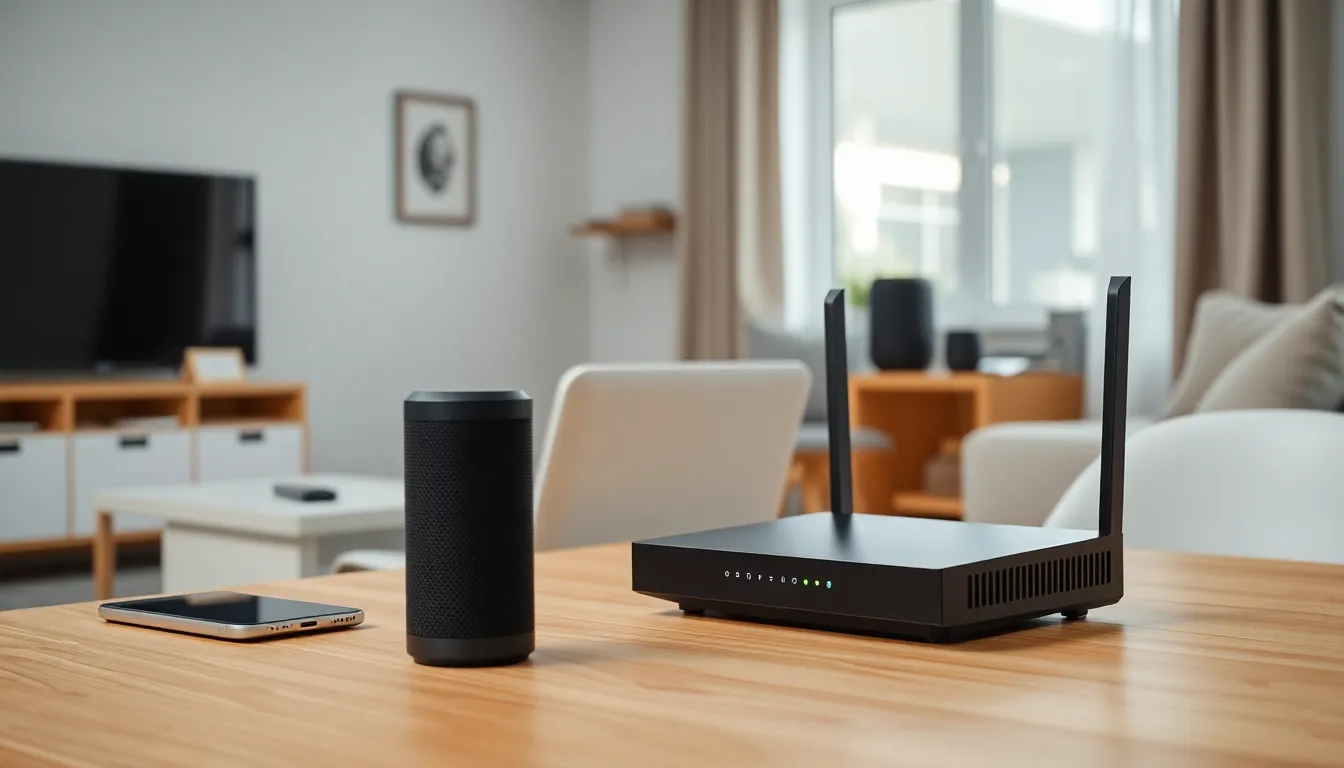
Home networking for beginners doesn’t have to feel overwhelming. A home network connects all your devices, laptops, phones, smart TVs, and gaming consoles, so they can share internet access and communicate with each other. Whether you’re streaming movies, working from home, or just browsing the web, a solid home network makes everything run smoother.
This guide breaks down the basics. It covers what a home network actually is, the equipment you’ll need, how to set everything up, and ways to keep your connection fast and secure. By the end, you’ll have the knowledge to build a reliable network that fits your household’s needs.
Table of Contents
ToggleKey Takeaways
- Home networking for beginners starts with understanding that a router distributes your internet connection while a modem connects you to your ISP.
- Position your router in a central, elevated location to maximize Wi-Fi coverage and avoid dead zones throughout your home.
- Always change default passwords and enable WPA3 or WPA2 encryption to protect your home network from hackers.
- Use the 5GHz band for faster speeds on nearby devices and the 2.4GHz band for devices farther from the router.
- Consider a mesh network system if your home has areas with weak or no Wi-Fi signal.
- Regularly update your router’s firmware and restart it weekly to maintain optimal performance and security.
What Is a Home Network and Why Do You Need One?
A home network is a group of devices connected together within your home. These devices share a single internet connection and can also share files, printers, and other resources with each other.
Think of it this way: your internet service provider (ISP) delivers one connection to your house. Without a home network, only one device could use that connection at a time. A home network splits that connection so multiple devices can go online simultaneously.
Why does this matter? Most households today have dozens of connected devices. Smartphones, tablets, laptops, smart speakers, security cameras, and streaming devices all compete for bandwidth. A properly configured home network manages this traffic efficiently.
Home networking for beginners starts with understanding these core benefits:
- Shared internet access – Everyone in your household can browse, stream, and download at the same time.
- File sharing – Transfer photos, documents, and media between devices without using email or cloud storage.
- Printer sharing – One printer can serve every computer in your home.
- Smart home integration – Connected thermostats, lights, and doorbells need a network to function.
- Gaming and streaming – Online gaming and 4K video streaming require stable, fast connections.
A well-designed home network improves daily life. It reduces buffering, eliminates dead zones, and keeps all your gadgets working together.
Essential Equipment for Your Home Network
Building a home network requires a few key pieces of hardware. Here’s what beginners need to know about each component.
Routers and Modems
The modem and router are the backbone of any home network. They perform different jobs, though many people confuse them.
A modem connects your home to your ISP. It translates the signal from your internet provider into data your devices can use. Cable, DSL, and fiber connections each require specific modem types. Your ISP often provides a modem, or you can purchase your own.
A router creates your actual home network. It takes the internet connection from your modem and distributes it to all your devices. Routers assign local IP addresses, manage traffic between devices, and provide Wi-Fi signals.
Many ISPs now offer combo units that combine a modem and router in one device. These work fine for basic setups, but separate units give you more flexibility and often better performance.
When shopping for a router, consider these factors:
- Wi-Fi standard – Wi-Fi 6 (802.11ax) is the current standard. It handles multiple devices better than older versions.
- Speed ratings – Look for speeds that match or exceed your internet plan.
- Coverage area – Larger homes may need mesh systems or range extenders.
- Ethernet ports – Wired connections are faster and more stable for desktop computers and gaming consoles.
For home networking beginners, a mid-range router from a reputable brand handles most household needs. You don’t need the most expensive option unless you have specific requirements like dozens of smart devices or competitive online gaming.
How to Set Up Your Home Network Step by Step
Setting up a home network is straightforward. Follow these steps to get connected.
Step 1: Position your equipment
Place your modem near the cable or phone outlet where your internet service enters the home. Put your router in a central location. Avoid closets, basements, and corners, these locations weaken Wi-Fi signals. Elevated positions work best.
Step 2: Connect the modem
Plug your modem into the wall outlet using the appropriate cable (coaxial for cable internet, phone line for DSL). Connect the modem’s power adapter and wait for the status lights to stabilize. This usually takes 1-2 minutes.
Step 3: Connect the router
Use an Ethernet cable to connect your modem’s output port to your router’s WAN or Internet port. Plug in the router’s power adapter. Wait for the router to fully boot up, this can take 2-3 minutes.
Step 4: Configure your router
Connect a computer to the router using an Ethernet cable or the default Wi-Fi network (credentials are usually on a sticker on the router). Open a web browser and enter the router’s IP address (commonly 192.168.0.1 or 192.168.1.1). Log in with the default admin credentials.
Step 5: Set up your Wi-Fi
Change the default network name (SSID) to something you’ll recognize. Create a strong password, at least 12 characters with a mix of letters, numbers, and symbols. Select WPA3 security if available, or WPA2 as a minimum.
Step 6: Connect your devices
Search for your new Wi-Fi network on each device. Enter the password you created. For devices that need the fastest, most stable connection, use Ethernet cables instead of Wi-Fi.
Home networking for beginners gets easier with practice. Most routers also have mobile apps that simplify the setup process and ongoing management.
Tips for Improving Network Security and Performance
Once your home network is running, a few adjustments can make it faster and safer.
Security best practices:
- Change default passwords – Routers ship with generic admin credentials. Hackers know these. Create unique passwords for both your Wi-Fi network and router admin panel.
- Enable WPA3 or WPA2 encryption – Never use WEP or leave your network open. Modern encryption keeps outsiders from accessing your data.
- Update firmware regularly – Router manufacturers release updates that fix security holes. Check for updates monthly or enable automatic updates.
- Create a guest network – Give visitors a separate network. This keeps your main network private and protects your devices from any malware on guest devices.
- Disable WPS – Wi-Fi Protected Setup has known vulnerabilities. Turn it off in your router settings.
Performance improvements:
- Choose the right frequency band – Most routers broadcast on 2.4GHz and 5GHz bands. The 5GHz band is faster but has shorter range. Use it for devices close to the router.
- Reduce interference – Microwaves, cordless phones, and baby monitors can disrupt Wi-Fi signals. Keep your router away from these devices.
- Restart your router periodically – A weekly reboot clears the router’s memory and can resolve slowdowns.
- Use Quality of Service (QoS) settings – QoS lets you prioritize bandwidth for specific activities like video calls or gaming.
- Consider a mesh system – If you have dead zones, mesh networks use multiple access points to blanket your home in consistent coverage.
Home networking beginners often overlook these tweaks. Small changes add up to noticeable improvements in speed and reliability.


