
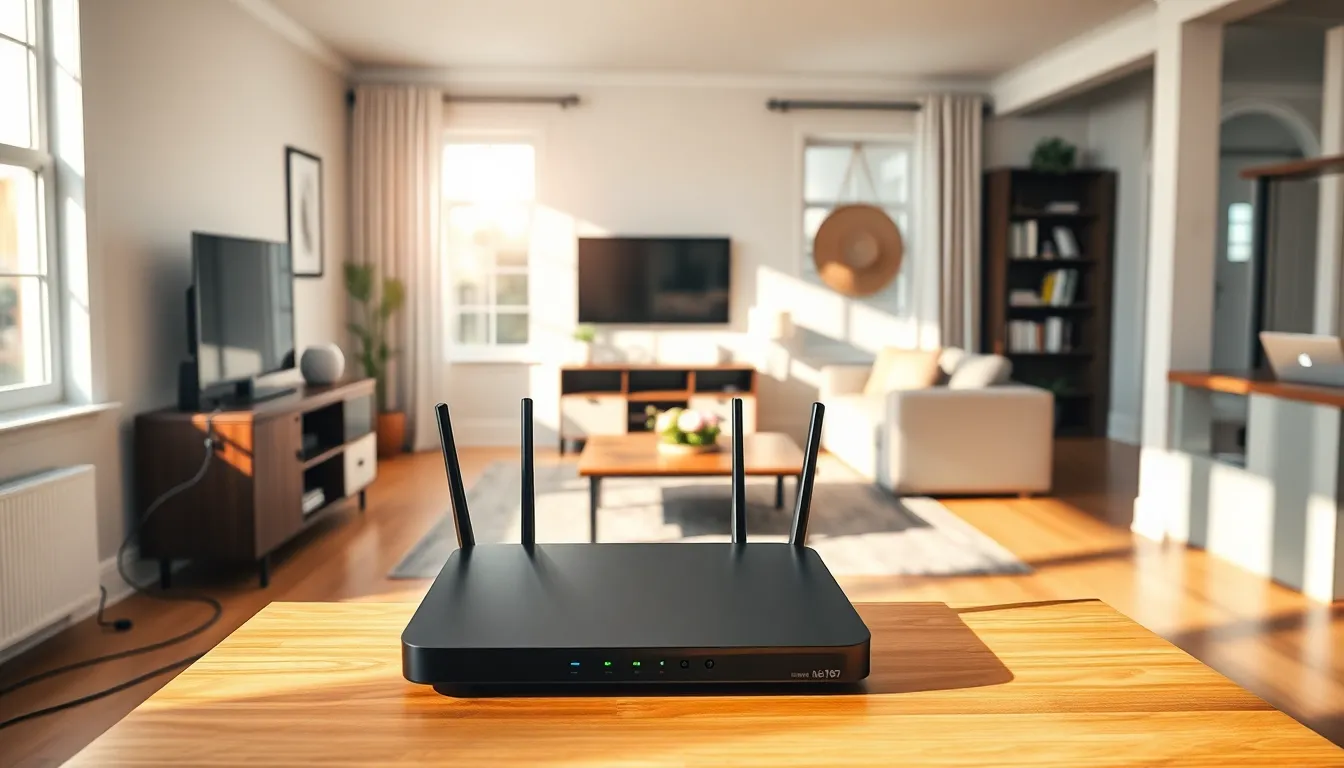
Home networking examples help households build reliable internet connections for work, entertainment, and smart devices. A well-designed home network delivers fast speeds, strong coverage, and secure connections throughout every room.
Whether someone streams movies in the living room or runs video calls from a home office, the right network setup makes all the difference. This guide covers practical home networking examples for beginners, large homes, smart device users, and power users who need high-performance connections.
Table of Contents
ToggleKey Takeaways
- A basic home networking example includes a modem, router, and Ethernet cables to connect devices like laptops, smartphones, and gaming consoles.
- Mesh networks with multiple nodes eliminate Wi-Fi dead zones in larger homes over 2,500 square feet.
- Creating separate networks for smart home devices improves both security and performance by isolating IoT gadgets from personal computers.
- Wired Ethernet connections provide lower latency and more reliable speeds for home offices and gaming setups compared to Wi-Fi.
- Enable WPA3 or WPA2 encryption and change default router passwords immediately to protect your home network from unauthorized access.
- Use Quality of Service (QoS) settings to prioritize video calls or gaming traffic for consistent performance during high-demand activities.
Basic Home Network Setup for Beginners
A basic home network setup requires just a few components: a modem, a router, and devices to connect. The modem receives internet service from the provider. The router distributes that connection to computers, phones, tablets, and smart TVs.
For most beginners, a single wireless router handles everything. Place the router in a central location, away from walls and metal objects. This placement gives devices the strongest signal possible.
Here’s what a typical basic home networking example looks like:
- Modem: Connects to the internet service provider via coaxial or fiber cable
- Router: Creates a Wi-Fi network and manages device connections
- Ethernet cables: Provide wired connections for desktop computers or gaming consoles
- Devices: Laptops, smartphones, tablets, and streaming devices connect wirelessly
Most households start with this simple configuration. A standard dual-band router offers both 2.4GHz and 5GHz frequencies. The 2.4GHz band reaches farther but moves data slower. The 5GHz band delivers faster speeds over shorter distances.
Security matters from day one. Change the default router password immediately. Enable WPA3 encryption if the router supports it, or use WPA2 as the minimum standard. These steps protect the home network from unauthorized access.
This basic home networking example works well for apartments and small houses under 1,500 square feet. Larger spaces need more advanced solutions.
Mesh Network Configuration for Larger Homes
Larger homes often struggle with Wi-Fi dead zones. A single router can’t cover 2,500+ square feet effectively. Mesh networks solve this problem by using multiple access points that work together.
A mesh system includes a main router unit and satellite nodes placed throughout the house. These nodes communicate with each other and create one seamless network. Devices automatically connect to the nearest node as users move around.
Popular mesh systems include Google Nest WiFi, Eero, and TP-Link Deco. Each system offers different features, but they all follow the same home networking example principle: distributed coverage.
Here’s how to set up a mesh network:
- Place the main unit near the modem in a central location
- Position satellite nodes in areas with weak coverage, typically every 30-40 feet
- Use the mobile app to configure network settings and monitor performance
- Name all nodes under one network name (SSID) for seamless roaming
Mesh networks excel in multi-story homes. Place one node on each floor for complete vertical coverage. The nodes handle the handoff between floors automatically.
This home networking example costs more than a basic setup. Entry-level mesh systems start around $150 for two units. Premium systems with Wi-Fi 6E support run $400 or more. But for large homes, mesh networks eliminate frustration and deliver consistent speeds everywhere.
Wired backhaul improves mesh performance further. Connect nodes to each other with Ethernet cables when possible. This setup frees up wireless bandwidth for actual devices.
Smart Home Device Networks
Smart home devices create unique networking demands. Thermostats, cameras, doorbells, lights, and voice assistants all need reliable connections. A well-planned smart home network keeps these devices running smoothly.
Most smart devices use the 2.4GHz band because it offers better range and wall penetration. This creates a potential bottleneck. Dozens of devices competing for 2.4GHz bandwidth slow everything down.
The solution? Create a separate network for smart devices. Many routers support guest networks or VLANs (Virtual Local Area Networks). Put smart devices on one network and computers on another. This home networking example improves both security and performance.
Here’s a practical smart home network configuration:
- Primary network: Computers, phones, tablets, gaming consoles
- IoT network: Smart lights, plugs, sensors, voice assistants
- Camera network: Security cameras and video doorbells (optional separate VLAN)
Some smart home devices require a hub. Zigbee and Z-Wave devices don’t connect directly to Wi-Fi. They need a hub like SmartThings or Hubitat to communicate with the network. These hubs connect to the router via Ethernet or Wi-Fi.
Bandwidth planning matters for camera systems. A single 1080p security camera uses 1-2 Mbps for continuous streaming. Four cameras need 4-8 Mbps of upload bandwidth. Check internet plan limits before adding multiple cameras.
This home networking example keeps smart devices isolated from personal computers. If a smart light bulb gets compromised, attackers can’t easily reach laptops or phones on the separate network.
Home Office and Gaming Network Examples
Home offices and gaming setups demand low latency and high reliability. Video calls drop when bandwidth fluctuates. Online games lag when packets get delayed. These home networking examples prioritize performance.
For home offices, wired connections beat wireless every time. Run an Ethernet cable from the router directly to the work computer. This eliminates Wi-Fi interference and provides stable bandwidth for video conferencing.
A typical home office network includes:
- Gigabit Ethernet connection to the primary work computer
- Quality of Service (QoS) settings that prioritize video call traffic
- Uninterruptible power supply (UPS) to keep the router running during brief outages
- Backup internet via mobile hotspot for critical meetings
Gaming networks need similar attention. Competitive gamers obsess over ping times for good reason. Every millisecond matters in fast-paced games. A wired connection reduces latency by 10-30ms compared to Wi-Fi.
QoS settings help gaming traffic flow smoothly. Most modern routers let users prioritize specific devices or traffic types. Set the gaming console or PC as high priority. The router then handles game packets before other traffic.
This home networking example also benefits from port forwarding. Many online games perform better with specific ports opened. Check game documentation for recommended port settings. Forward those ports to the gaming device’s IP address.
For households with multiple gamers or remote workers, consider a dual-WAN router. These devices connect to two internet services and balance traffic between them. If one connection fails, the other takes over automatically.
Upload speed often limits home office performance. Standard internet plans offer much faster download speeds than upload speeds. Video calls need strong upload bandwidth. Consider a fiber plan with symmetric speeds if available in the area.


